Chapter 3
Building a bucket
The bucket is the set of containers you are about to change. Everything in it receives the same edits.
Find what you need
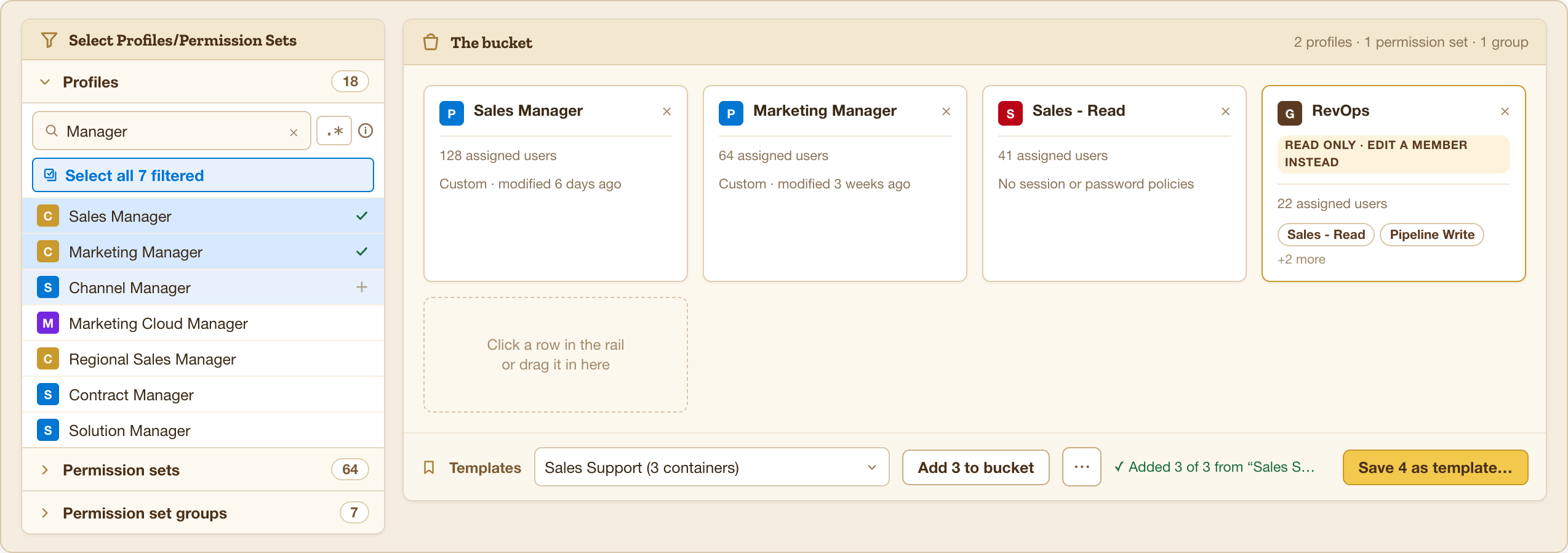
The rail lists Profiles, Permission Sets, and Permission Set Groups, each with its own search.
- Fuzzy search — type any part of a name. Label, API name, and developer name all match, so
mgrfinds Sales Manager. - Regex — click
.*beside the search box to switch.^Custom:catches everything starting with “Custom:”;sales|supportcatches either.
Click a row to drop it in the bucket. Click again, or the ✕ on its chip, to take it out.
Mixing container types
You can. A bucket holding two profiles and three permission sets is normal, and the same target applies to all five.
Two exceptions worth knowing before you are surprised by them:
- Permission set groups are read-only. A group’s access comes from the sets inside it, so the platform refuses direct writes. Buckley shows the column with a READ ONLY badge rather than letting you set something that will not save.
- Some settings are profile-only. Session policies, password policies, login hours, and IP ranges do not exist on a permission set. Those cells read n/a.
Pick your target objects
In the Objects panel, filter to an object and add it to your editing targets. Add as many as you need.
Share, History, and Feed objects are hidden by default — they triple the list and are rarely what you want. Tick Show Share/History/Feed objects if they are.
Build the bucket before you add objects. The Related access panel works off your targets, and it can only warn you about containers you have not already added.
Bucket templates
A bucket you rebuild every month is worth saving. Save as template keeps the container list — not the access, just the membership — so next month starts with the same nine profiles already gathered.